Add or remove people in a Group:
- Click from the main menu
- Click the tab
- On the left side of the page, select the Group you'd like to modify
Removing People
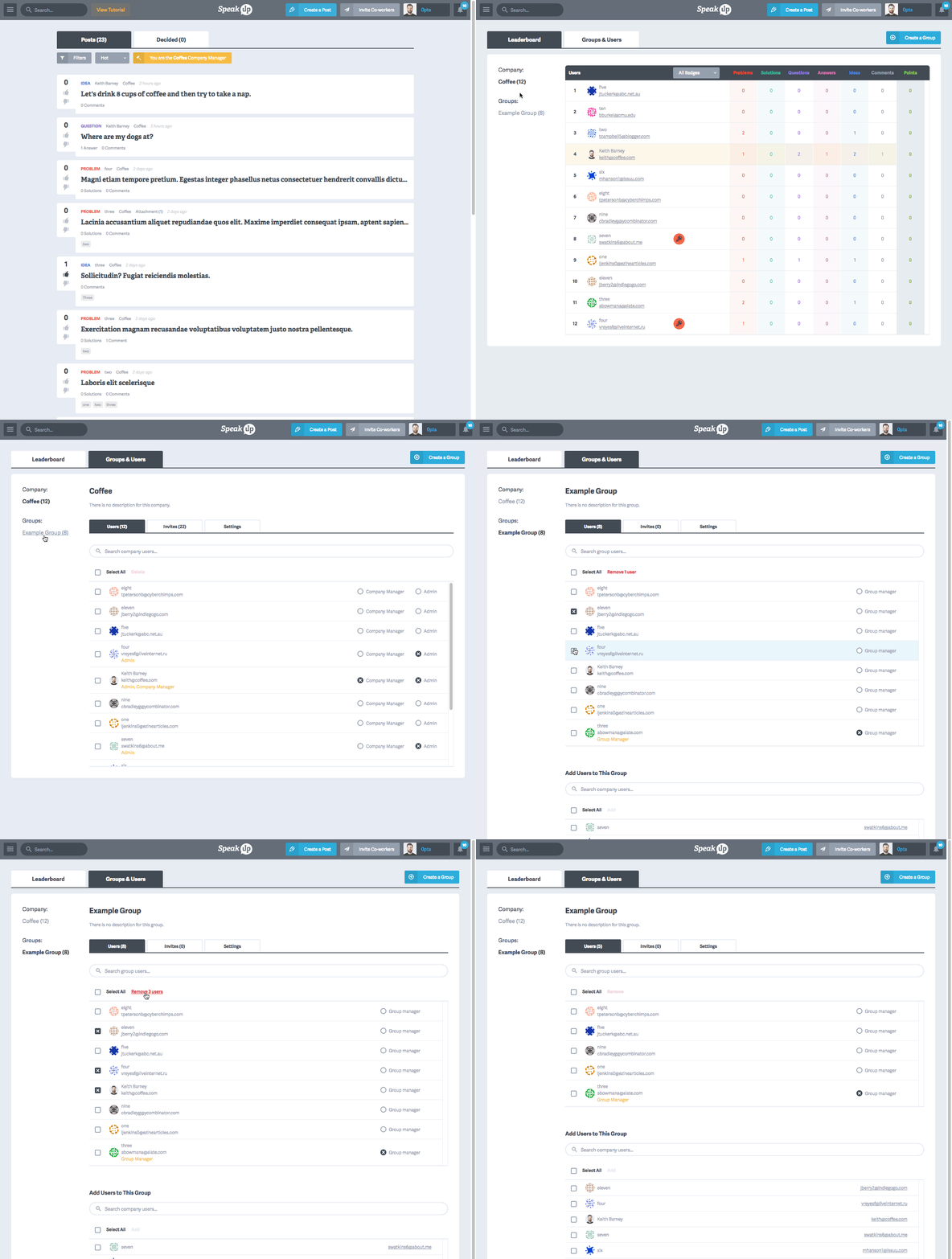
- Use the checkboxes on the left of the table to select people you'd like to remove
- At the top of the table, click
Adding People
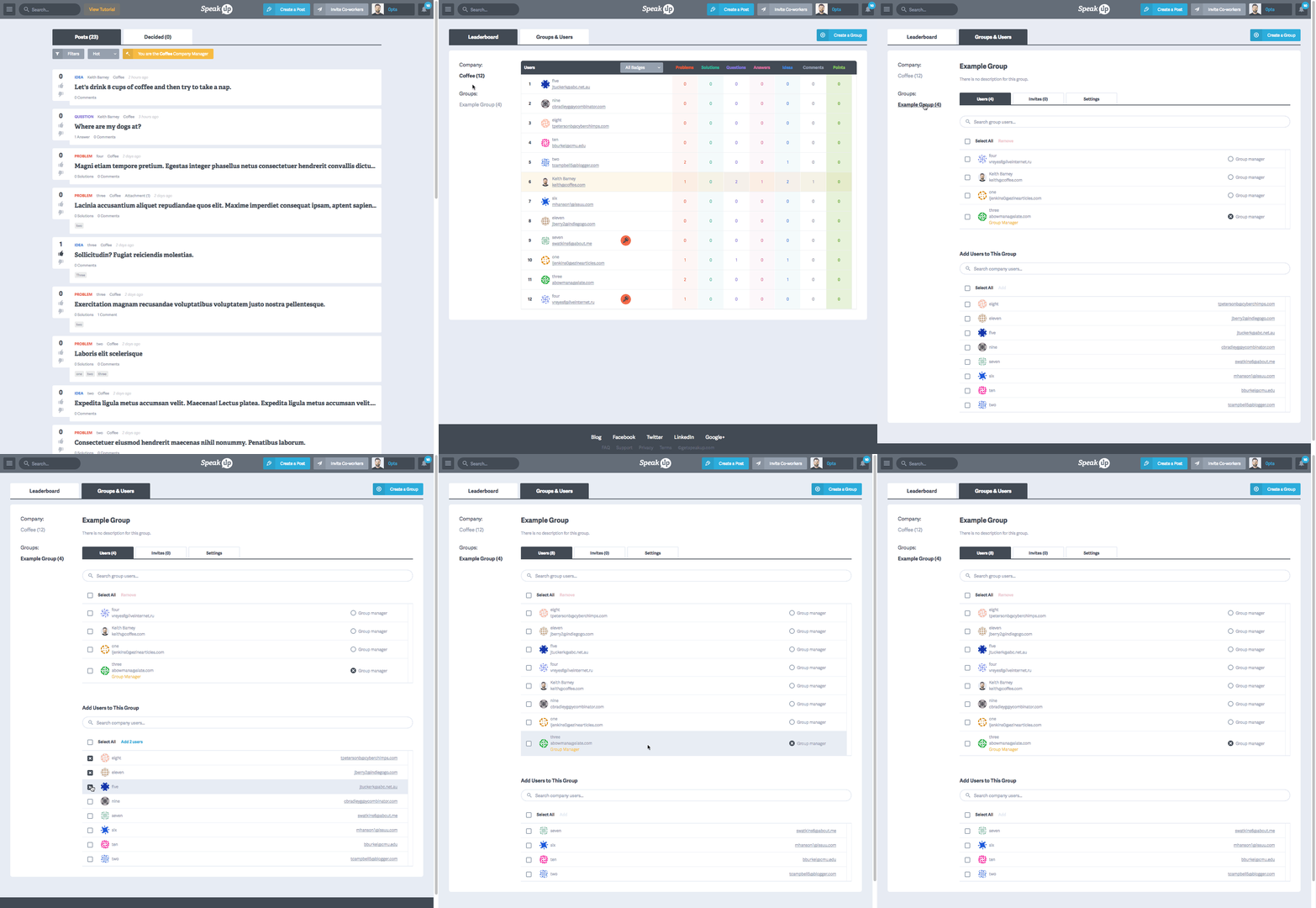
- Scroll down to the section
- Use the checkboxes on the left of the table to select people you'd like to add
- At the top of the table, click
Delete a Group:
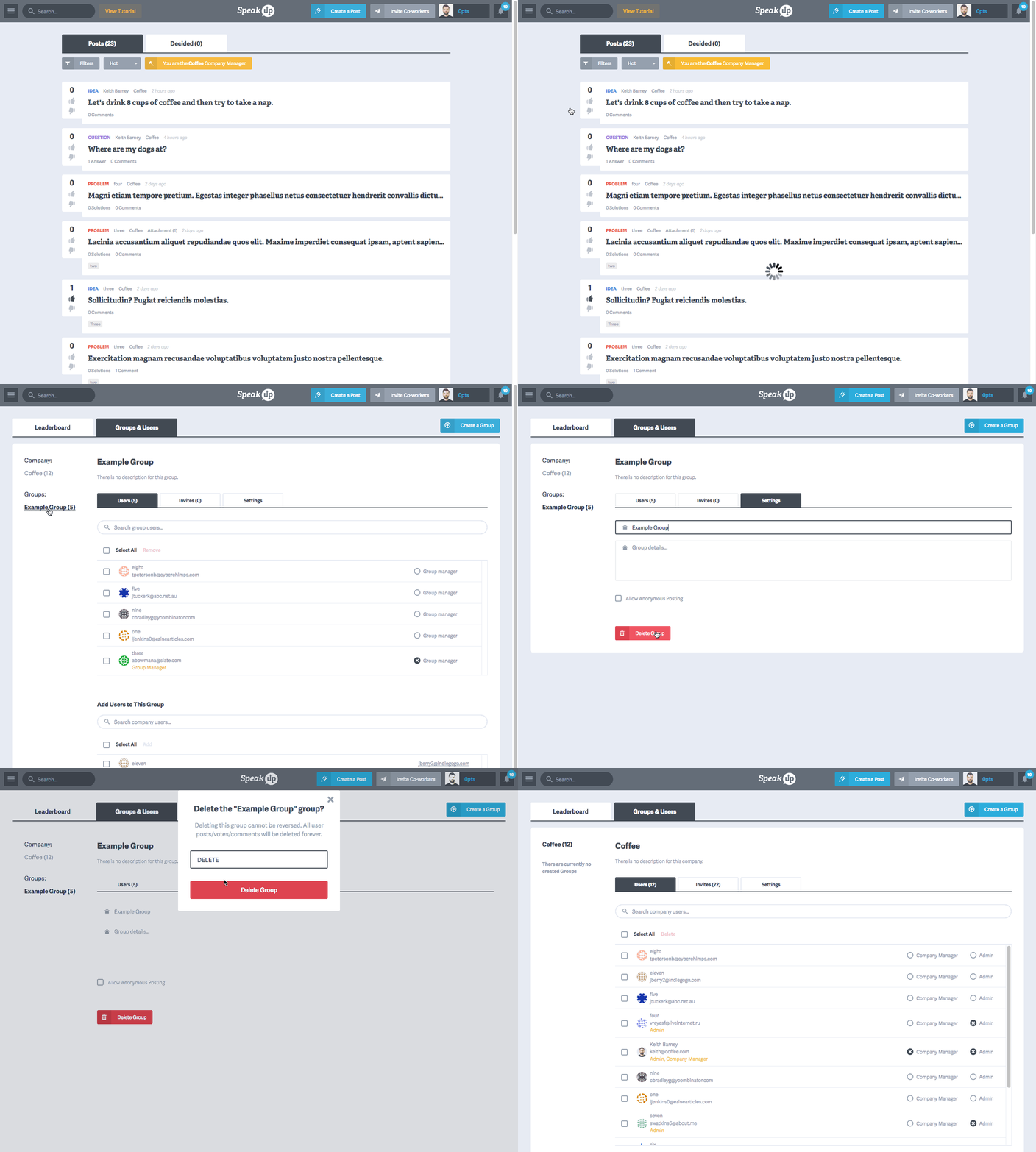
- Click from the main menu
- Click the tab
- On the left side of the page, select the Group you'd like to delete
- Click the sub-tab
- Scroll down and click the button